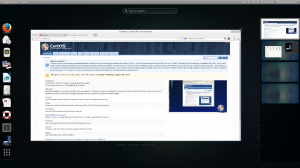
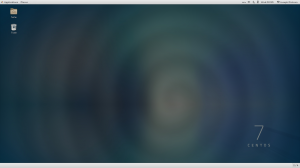
My first attempt using this distribution and the first release after being absorbed by Red Hat.
Key Features
Up to 10 years of Security Updates
Gnome 3.8.4 (with a classic inspired panel)
Hardware support updates every 6 months
Intended to be used as a Community Enterprise Distribution where stability is more important than having the latest technologies.
My at a glance opinion is that CentOS is positioned well between Debian Stable and Ubuntu LTS for the packages it offers.
Like Fedora only free software is offered upon installation and as of right now there is no non free repositories available but they’ll show up pretty soon.
I’m going to kick the tires on this one for a few days and see if it’s something I can enjoy using for an extended period of time. As I have Three hard drives on my system I enjoy having a stable distribution on the 1TB drive for my long term storage a testing mechanical drive for distro hopping and the SSD holds my daily use distribution.
Took part in my first Linux podcast with the Cup of Linux community this afternoon and discussed our favorite open source alternatives to proprietary software.
Featuring
Brian, LinuxBookPro, Matthew Moore, LordShadowWing and our host Spatry.
The Linux Mint Project yesterday released an updated snapshot of their Debian spin-off taking advantage of the latest packages from Linux Mint 16 Petra. Cinnamon 2.0 and Mate 1.6 and all the various updates unique to Linux Mint.
LMDE users can expect a more stability at the cost of packages being adopted later.
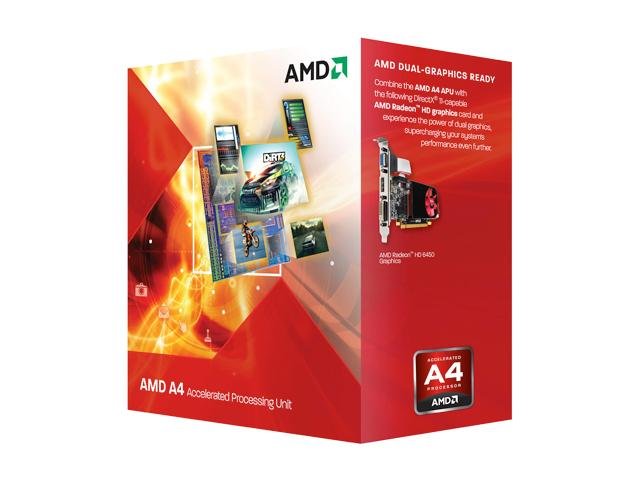
In my continued effort to theoretically create the perfect value GNU/Linux PC I decided to have a look at AMD’s low end Llano offering. A slightly more expensive system than the previous Intel Celeron posting, the price bump is due to my interest in higher quality components such as an Antec case and Corsair power supply. This sub $300 system provides decent GPU performance so HD video playback is possible as well as light-medium gaming.
With all the excitement going to Chromebooks running Celeron processors the DIY desktop needs a little love and this 2.5 GHZ Llano may not be as energy efficient as an Intel Celeron but does provide a boost to GPU performance.
Run a decent Linux distribution such as Xubuntu or Linux Mint and you’re left with more than enough processing power everything short of high end video editing or gaming.
If you’re like me you’re probably only using a small percentage of the CPUs potential to stream music while coding in a text editor box anyway.
One of the best features for Ubuntu spinoffs like Lubuntu is their dedication to maintaining a stable, reliable and predictable desktop experience with every new version. Making the need for a Long Term Support (LTS) largely unnecessary.
A few nights I had the pleasure of upgrading while watching YouTube videos via VLC, browsing feedly updates in chromium. My Toshiba NB505 netbook chugged along calmly to the point where I actually didn’t notice it had finished. Upon reboot I was greeted with a softer rounded login screen. Once logged in I noticed that the only cosmetic change was a squared off application menu logo. Everything else was quietly the same as 13.04. Although I did have to restore my wallpaper and battery icon. I’m not sure if that was a glitch in the first reboot or a common issue. Both were easily solved within their preferences.
Updated applications still optimized for slower hardware and I generally kept everything in their stock configurations. The most intensive application being Chromium. 90% of my usage coming from web apps. However still capable of creating a basic screencast and video editing if I’m patient with the slow rendering of a dual core Atom processor.
Lubuntu doesn’t offer anything new and for that I thank them, as my systems age it’s good to know I can keep using them running dedicated projects like coding or torrenting iso files. Especially a low power netbook that tops out at 19 Watts.
If Lubuntu isn’t for you I’d suggest trying Peppermint OS which adds some cloud services and XFCE features creating modern experience while keeping things light.
The major issue I’ve had with LTS releases based on Ubuntu is the lack of updates to packages like pianobar or failure to simply mount my Nexus 7.
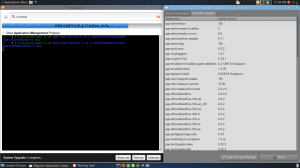
Sabayon Linux is based on Gentoo and preconfigured for various architectures and desktop environments. The installation process is acomplished through the Anaconda GUI interface so there is no need to muck about in the command line. I went with the XFCE AMD 64 installation.
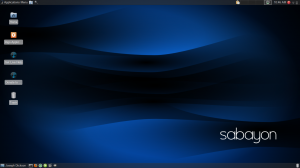
First boot after installation greeted me with the XFCE loign menu followed by the desktop customized by the Sabayon project to use 2 thin panels at top and bottom. The desktop environment is snappy, there is almost no delay opening a Thunar file manager window and is one of the fastest implementations of XFCE I’ve experienced.
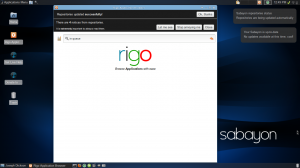
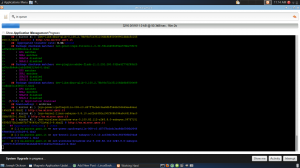
Sabayon doesn’t reinvent the desktop experinece. For instance using the XFCE version won’t install any qt applications instead opting for lightweight GTK-2 based packages. Under light web surfing in Midori while Rigo (Entrophy) update’s in the background things are eerily quiet. CPU processes are so low (2%) that my fan remains idle. I’m expecting this to lead to some minor battery savings.
Fast, so far stable and economical on power usage what are the downsides?
Sitting through an initial update process that takes a few hours can lead to frustration. Sabayon can have hundreds of updates including the package management software which all get. It certainly helps to review the documentation on the wiki throughout the installation process to prevent delays and choose whether to opt for Gentoo’s Portage or Sabayon’s Entrophy to manage your packages.
Entrophy, Sabayon’s Pre-compiled offerings vs Portage Gentoo’s source based software. You get to choose!
Compiling packages from source has stable results however, the entire process does take a long time.
For instance compiling and installing Chromium via Gentoo’s Portage package manger took nearly an hour. Installing the pre-compiled version via Entrophy was quick; maybe a couple minutes. They do warn to choose one package manager and stick to it as swapping back and forth could make the system unstable due to the different versions of packages and dependencies.
The actual compiling of the packages does dominate CPU resources so keep that in mind. Laptop users will want to plug in their system during updates if going the Portage route.
In all my system works beautifully. Wi-fi and hotkeys worked upon installation.
Sabayon’s FAQ wiki page has a great rundown of the differences between their distribution and others like Debian or Ubuntu.
The ability to choose between the two is what really makes Sabayon shine. You can take it easy with Entropy or learn the power of Gentoo via Portage. Portage tells us exactly what we need to do in most cases to get everything to compile politely. So anyone interested in Gentoo can simply install Sabayon and use Portage for everything else. Or take it easy and trust the wonderful Rigo updater or Entrophy if using the command line.
Final Thoughts
In all Sabayon is both a good departure from Ubuntu or Linux Mint and can be customized manually or left as is. Each .iso is optimized for it’s own desktop environment’s best offerings whether that’s Gnome, KDE, XFCE, or MATE.
I tested Sabayon on a System76 Lemur Ultra and found it very responsive, battery power was at about 4hrs which is common for this make and model. The only glitches I have experienced is a relatively slow wifi connection, I suspect there is a bottleneck somewhere but haven’t identified if the cause.
Sabayon is the best example of both Gentoo simplified and a great introduction to multiple desktop environments.